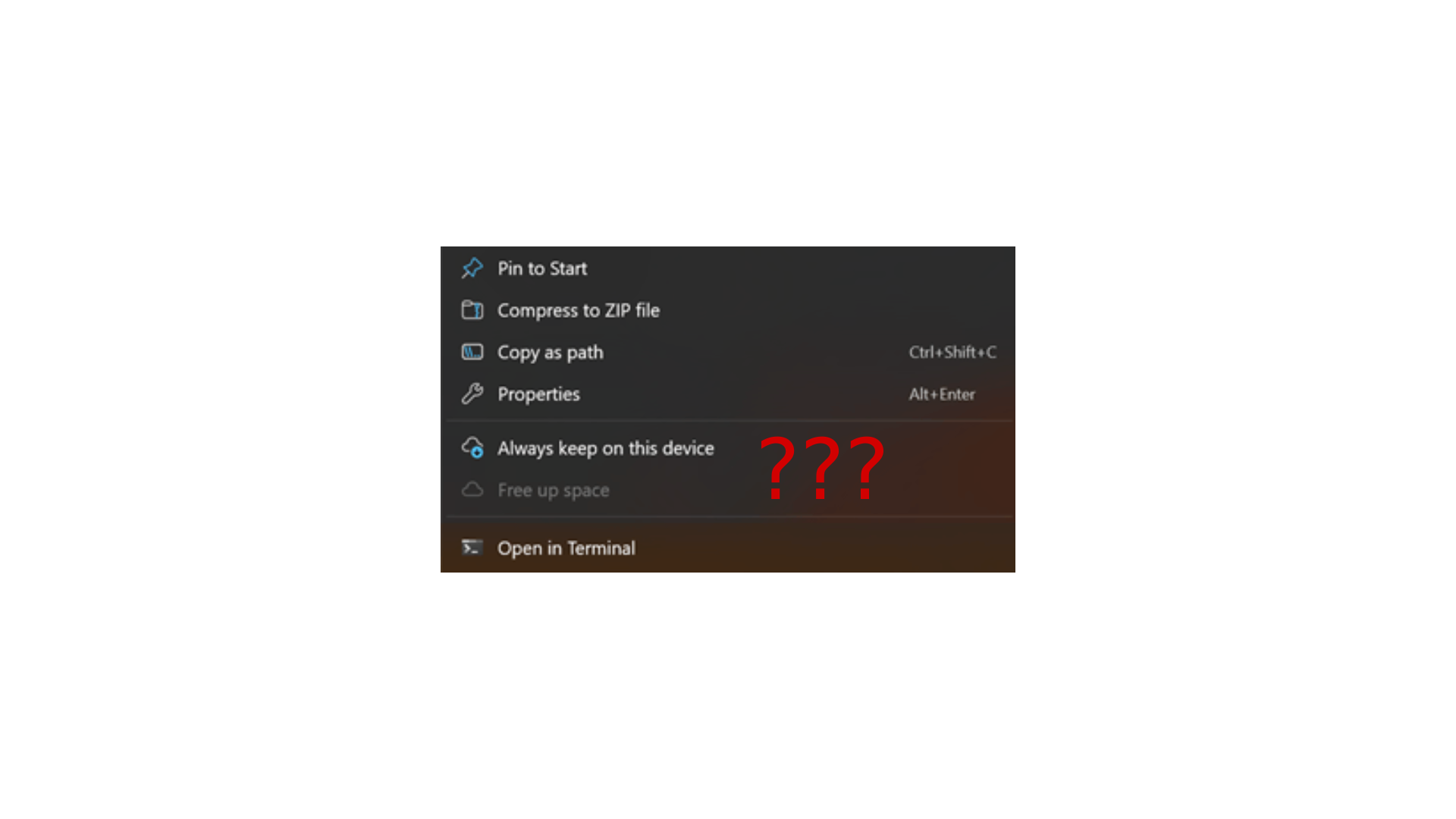

Are you experiencing issues with your Windows 11 OneDrive right-click menu showing only limited options like “Always keep on this device” and “Free up space,” while missing important features like “View online” and “Share”? This guide provides a proven solution that has successfully restored the full OneDrive context menu on multiple devices in my experience.
Quick Solution Summary
- Time Required: 15-30 minutes
- Difficulty Level: Moderate
- Required Tools: Command Prompt (Admin)
- Success Rate: Tested successfully on multiple Windows 11 systems
The Problem
When right-clicking OneDrive files or folders in Windows 11, you might only see these limited options:
- “Always keep on this device”
- “Free up space”
While missing these essential options:
- View online
- Share
- Copy link
- Manage access
- And other OneDrive-specific features
Step-by-Step Solution
Step 1: Run System File Checker
- Open Command Prompt as Administrator
- Press Windows + X
- Select “Windows Terminal (Admin)”
- Run the following command:Copy
sfc /scannow - Wait for the scan to complete (may take 10-15 minutes)
- Restart your computer if prompted
Step 2: (Optional but Recommended) Sync Your OneDrive
- Open File Explorer
- Right-click on your OneDrive folder
- Select “Always keep on this device”
- Wait for synchronization to complete
Step 3: Reinstall OneDrive
- Uninstall OneDrive
- Open Settings > Apps > Installed Apps
- Find Microsoft OneDrive
- Click the three dots (⋮)
- Select Uninstall
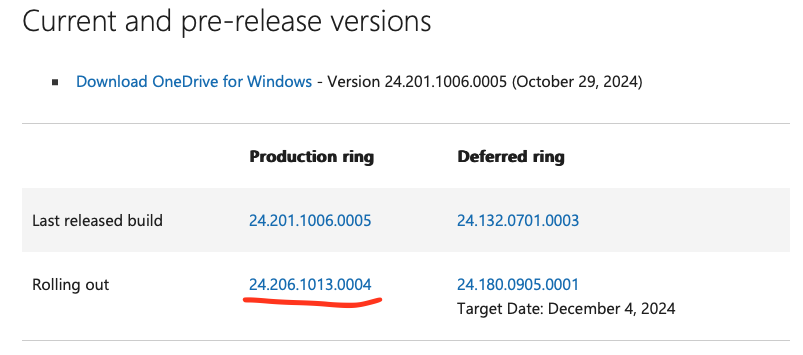
- Download the latest version
- Visit the official Microsoft OneDrive download page
- Download the latest Windows version
- Install the new OneDrive version
- Sign in using your Microsoft account
- Use the same account that was previously connected
- Your folders will automatically start re-syncing
What to Expect After Fix
- All previous OneDrive and SharePoint folders will continue syncing
- Full context menu options will be restored
- No data loss during the process
- Sync settings will be preserved
Important Notes
Before Starting
- Ensure all important files are synced
- Have your Microsoft account credentials ready
- Make sure you have a stable internet connection
- Note your current OneDrive folder locations
Data Safety
- This process doesn’t delete your OneDrive files
- All files remain safe in cloud storage
- Local copies remain unchanged if “Always keep on this device” was enabled
Troubleshooting Tips
If issues persist after following the main steps:
- Clear OneDrive Cache
- Close OneDrive completely
- Delete the OneDrive cache folder
- Restart OneDrive
- Check Windows Updates
- Ensure Windows 11 is up to date
- Install any pending updates
- Verify Office Integration
- If you use Microsoft Office, ensure it’s up to date
- Check Office integration settings in OneDrive
Frequently Asked Questions
Q: Will I lose my files during this process? A: No, your files are safely stored in OneDrive cloud storage and will re-sync after reinstallation.
Q: Do I need to reconfigure all my OneDrive settings? A: No, most settings will be restored automatically after signing in with the same account.
Q: How long does the entire process take? A: Typically 15-30 minutes, depending on your system speed and internet connection.
Prevention Tips
To avoid future context menu issues:
- Keep Windows 11 updated
- Maintain regular system maintenance
- Don’t modify OneDrive system files
- Use official Microsoft update channels
Conclusion
This solution has proven effective in restoring the full OneDrive context menu functionality on Windows 11 systems. While the process involves several steps, it’s a reliable fix that maintains all your data and sync settings.