
Looking to install AnyDesk on your Mac running macOS 15 (Sonoma) or later? This step-by-step guide will walk you through the entire process, including handling all required system permissions for full functionality.
Quick Installation Overview
- Download Time: 2-3 minutes
- Installation Time: 5-7 minutes
- Required Permissions: Screen Recording, Accessibility, Full Disk Access
- Difficulty Level: Easy
Prerequisites
- macOS 15 (Sonoma) or later
- Administrative access to your Mac
- Active internet connection
- At least 100MB of free space
Step-by-Step Installation Guide
1. Download and Install AnyDesk
- Visit the official AnyDesk website (anydesk.com)
- Download the macOS version
- Open the downloaded .dmg file
- Drag AnyDesk to your Applications folder
2. First-Time Setup and Permissions
When you first launch AnyDesk, you’ll see a tutorial window that guides you through essential permission settings. This makes the setup process much easier than manual configuration.
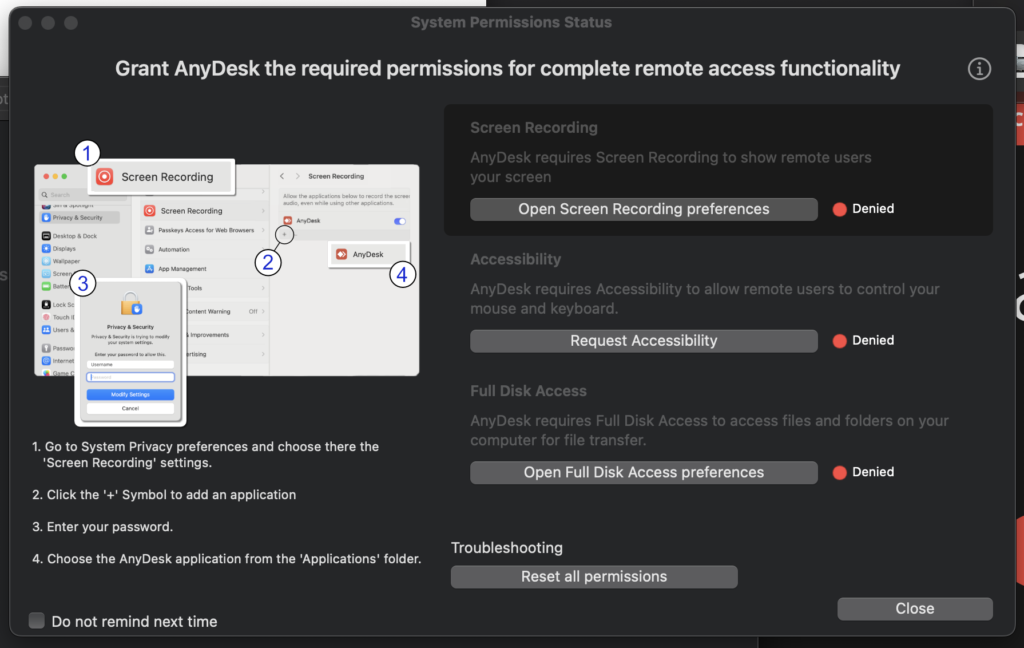
Using the Tutorial Window (Recommended Method)
- Launch AnyDesk from your Applications folder
- Click through the tutorial window
- Use the convenient direct buttons to access each required permission:
- Screen Recording
- Accessibility
- Full Disk Access
Manual Permission Setup (Alternative Method)
If you don’t see the tutorial window or need to set permissions later, follow these steps:
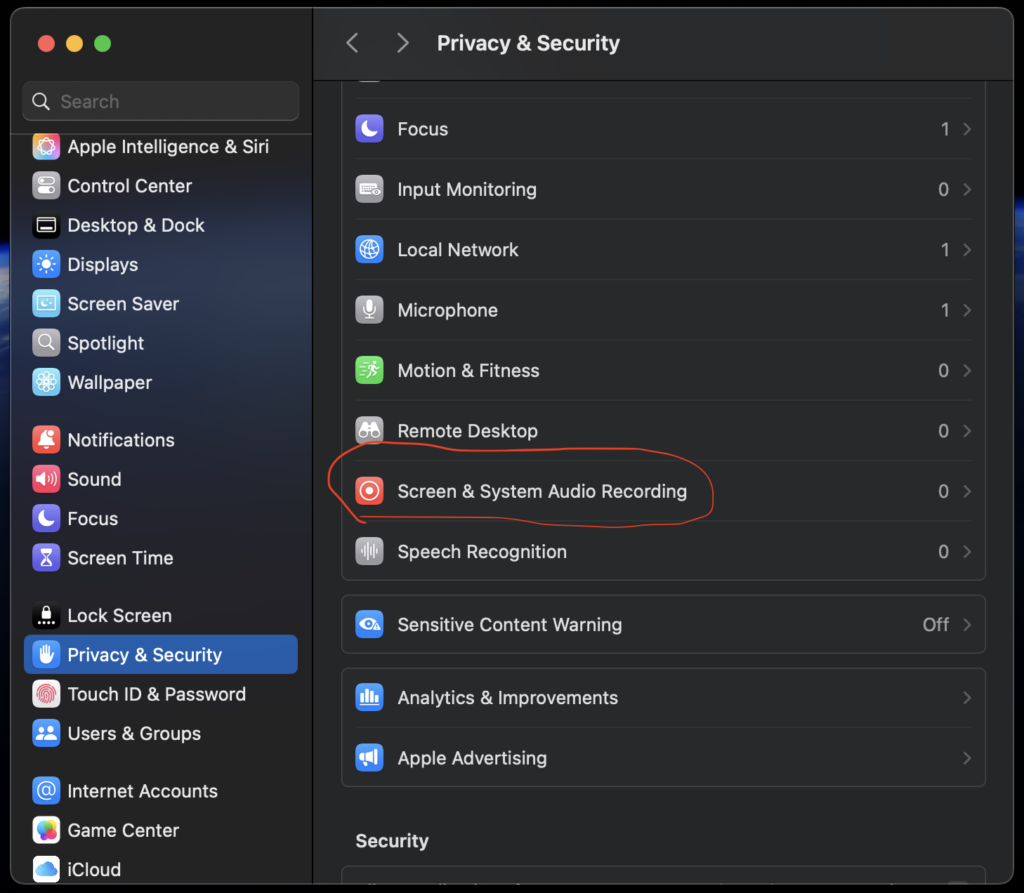
- Open System Settings on your Mac
- Navigate to Privacy & Security
- Enable the following permissions for AnyDesk:
- Screen Recording: Required for sharing your screen
- Accessibility: Needed for remote control features
- Full Disk Access: Required for complete functionality
Important Security Notes
- Always download AnyDesk from the official website
- Keep your AnyDesk password secure and unique
- Enable two-factor authentication when possible
- Regularly update AnyDesk to the latest version
Troubleshooting Common Issues
Permission Issues
- If permissions aren’t working, try removing and re-adding them
- Restart AnyDesk after granting permissions
- In some cases, a system restart may be necessary
Installation Problems
- Clear download cache if download fails
- Ensure you have adequate disk space
- Check your internet connection
Frequently Asked Questions
Q: Do I need to grant all permissions for AnyDesk to work? A: Yes, all three permissions (Screen Recording, Accessibility, and Full Disk Access) are required for full functionality.
Q: Why does AnyDesk need so many permissions? A: These permissions are necessary for remote access functionality and are standard security requirements in macOS.
Q: Can I revoke permissions later? A: Yes, you can modify permissions anytime through System Settings, but this may limit AnyDesk’s functionality.
Performance Tips
- Close unnecessary applications before remote sessions
- Ensure stable internet connection for better performance
- Configure quality settings based on your internet speed
Conclusion
Installing AnyDesk on macOS 15+ is straightforward when you follow this guide. The built-in tutorial makes permission setup much easier, but you can always configure permissions manually through System Settings if needed.